 CapiBrowser
· 6 min read
Using YouTube for Homeschooling: How Parents Can Control What Kids Watch
Learn how to use YouTube for homeschooling safely — with parental controls, educational channels worth approving, and practical ways to keep lessons from turning into endless scrolling.
YouTube can be a real asset for homeschooling. A short science demo, a history explainer, or a language lesson can make a dry topic click — especially when your child learns better by watching than by reading alone.
The hard part is everything around that one good video: recommendations, Shorts, and open search that pull kids into content you never planned for the day.
This guide covers how to use YouTube for learning, which kinds of channels are worth approving, where YouTube’s own controls help (and where they fall short), and how to keep lessons from turning into open-ended watching.
Why YouTube works for homeschooling
Used with intention, YouTube fills gaps that textbooks and worksheets don’t always cover well:
- Science — experiments, nature, space, and how things work
- History and geography — stories, places, and timelines that feel less abstract on screen
- Math — visual explanations when a concept isn’t landing yet
- Languages — listening practice, vocabulary, and culture
- Arts and creativity — drawing, music, crafts, and making
The goal isn’t more screen time. It’s choosing videos that support what you’re already teaching — then stopping when the lesson is done.
Choose the right channels
Start with a short list of channels you’ve actually watched. Approve the ones that fit your child’s age and your curriculum, and leave the rest blocked.
A few solid starting points:
- SciShow Kids — short, clear answers to big science questions for younger kids
- National Geographic Kids — animals, nature, and the wider world
- BBC Earth — nature storytelling with strong production quality (preview for age fit)
- Homeschool Pop — curriculum-style lessons across many subjects
- History for Kids — approachable history explainers
- Mark Rober — engineering and experiments that work well for older kids and teens
- Veritasium — deeper science and curiosity content for teens who are ready for longer videos
Before you approve a channel, watch a few recent uploads yourself. Creators change over time, and “educational” on the channel title doesn’t guarantee every video fits your house rules.
For more subject-specific picks, see Capibro’s guides to science channels, STEM channels for teens, and nature channels.
Why recommendations get in the way
Even when a lesson starts well, YouTube is built to keep people watching:
- Recommendations surface the next video based on engagement, not your lesson plan
- Shorts turn a focused break into rapid, hard-to-stop scrolling
- Unrestricted search lets a child jump from a planned video to whatever they type next
That’s why “just one educational video” so often becomes an hour. The starting point was fine. The path after it wasn’t.
YouTube parental controls parents can use
YouTube does offer tools that reduce risk. They’re useful — and they still leave gaps if you need lesson-level control.
YouTube Kids
Best for younger children. You can set an age level or approve content yourself. Many strong learning channels aren’t in the YouTube Kids catalog, and older kids often outgrow the app’s look.
Supervised accounts (Family Link)
A supervised Google account lets you set a content level for YouTube. That filters a lot of mature material, but recommendations and search still decide much of what appears next.
Restricted Mode and channel blocking
Restricted Mode is a quick filter. Blocking channels removes specific problems you’ve already seen. Neither one lets you build a closed list of “only these channels for school today.”
For a full walkthrough of these options — and what each one misses — see YouTube parental controls: how to set them up.
A child-safe browser with channel whitelisting
If you want your child to open only the channels you’ve approved, use a whitelist approach: everything is blocked until you allow it. That flips the default from “YouTube decides” to “you decide.”
How CapiBrowser helps with YouTube for school
CapiBrowser is a safe browser for kids built around parent-approved websites and YouTube channels. For homeschooling, that means you can treat YouTube more like a curated resource library and less like an open feed.
Parents can:
- Approve specific YouTube channels so kids only open content you’ve reviewed
- Block Shorts so a lesson doesn’t turn into endless scrolling
- Keep kids from searching their way to random videos — unapproved content stays blocked
- Set daily screen time limits so school use has a clear ceiling
- Use Gems (Learn → Earn → Fun) so useful watching can unlock entertainment later, instead of becoming the whole afternoon
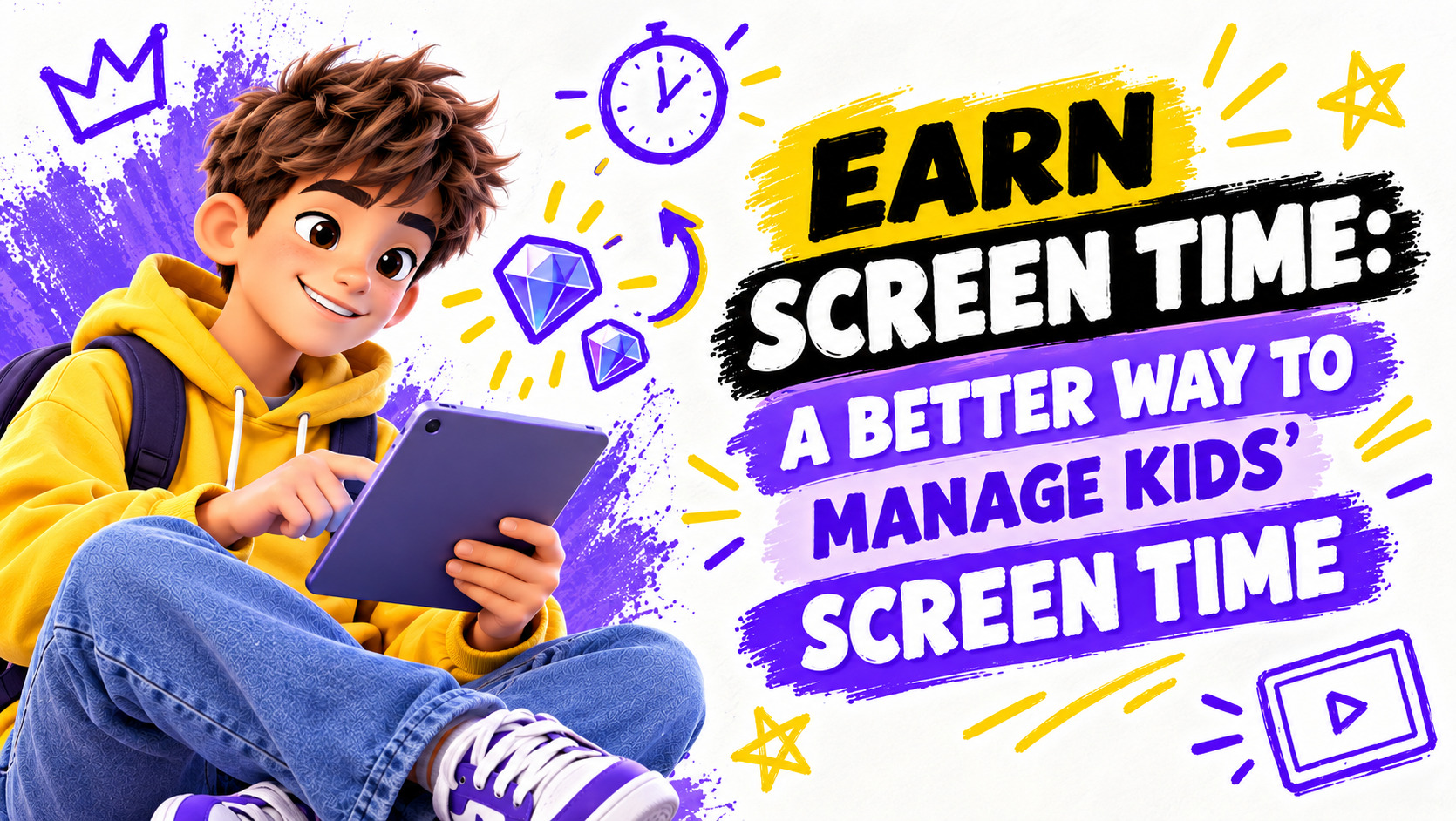
That last piece pairs especially well with homeschool days. A science or history channel can earn Gems; those Gems can unlock extra time in an app you’ve already approved. Extra playtime becomes something kids earn after learning, not something they negotiate for mid-video. Learn more about that approach in Earn screen time.
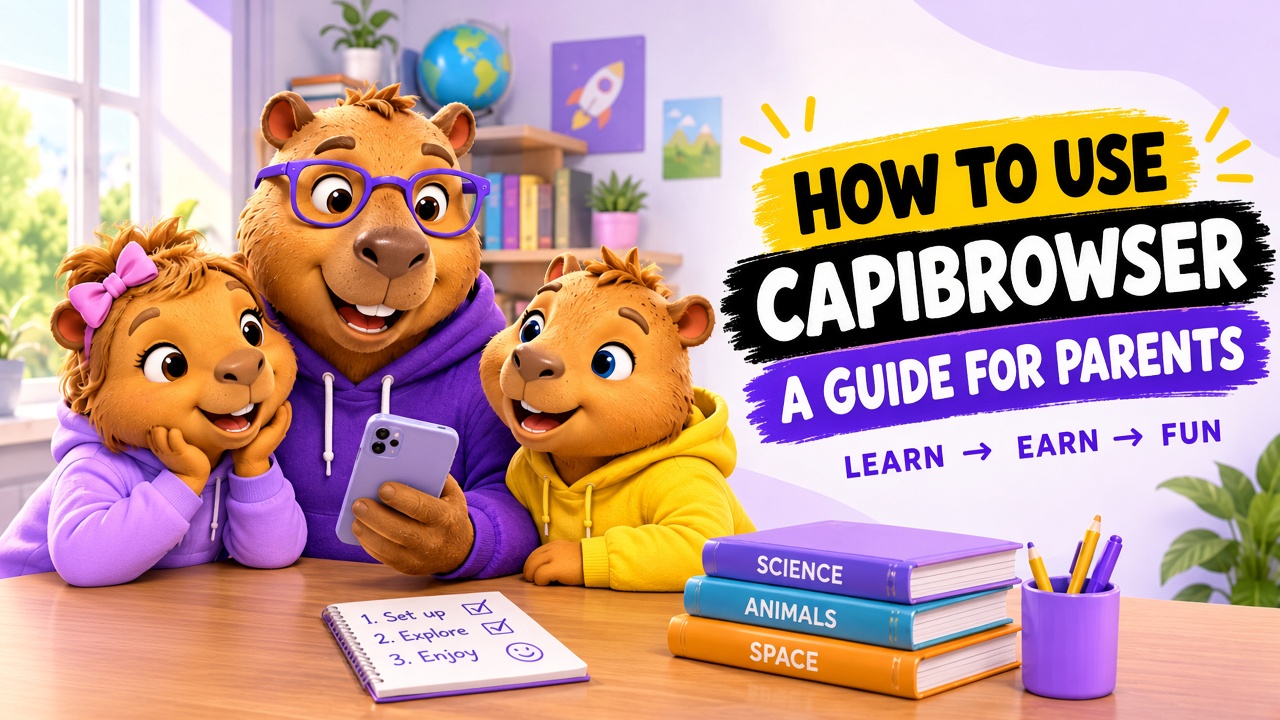
For the exact setup steps — bookmarks, categories, apps, and Gems — follow How to use CapiBrowser.
Practical tips for a YouTube homeschool routine
Tools help, but a simple routine keeps YouTube in its place:
- Pick videos ahead of time. Decide what supports today’s lesson before the device comes out.
- Pair watching with offline work. Watch, then discuss, draw, write, or try the experiment without the screen.
- Watch together when you can. Especially for new channels — you’ll catch tone, ads, and rabbit holes faster.
- Use playlists or a short approved list. Fewer choices means fewer detours.
- Set clear screen time rules. When school YouTube ends, it ends — or it only continues if they’ve earned it.
- Review content regularly. Revisit approved channels every so often and remove anything that no longer fits.
Keep YouTube helpful — not in charge
YouTube can support homeschooling without taking over the day. Choose channels on purpose, use parental controls that match how much freedom you’re comfortable with, and keep a routine that puts the lesson first.
If you want a setup where kids only reach the channels you’ve approved — with Shorts blocked and useful watching able to earn fun time later — start with CapiBrowser.
👉 Download CapiBrowser and approve your first learning channel in under a minute.