 CapiBrowser
· 6 min read
How to Use CapiBrowser: A Step-by-Step Guide for Parents
A step-by-step guide for parents on setting up CapiBrowser — approve websites and YouTube channels, unlock apps, and track screen time.
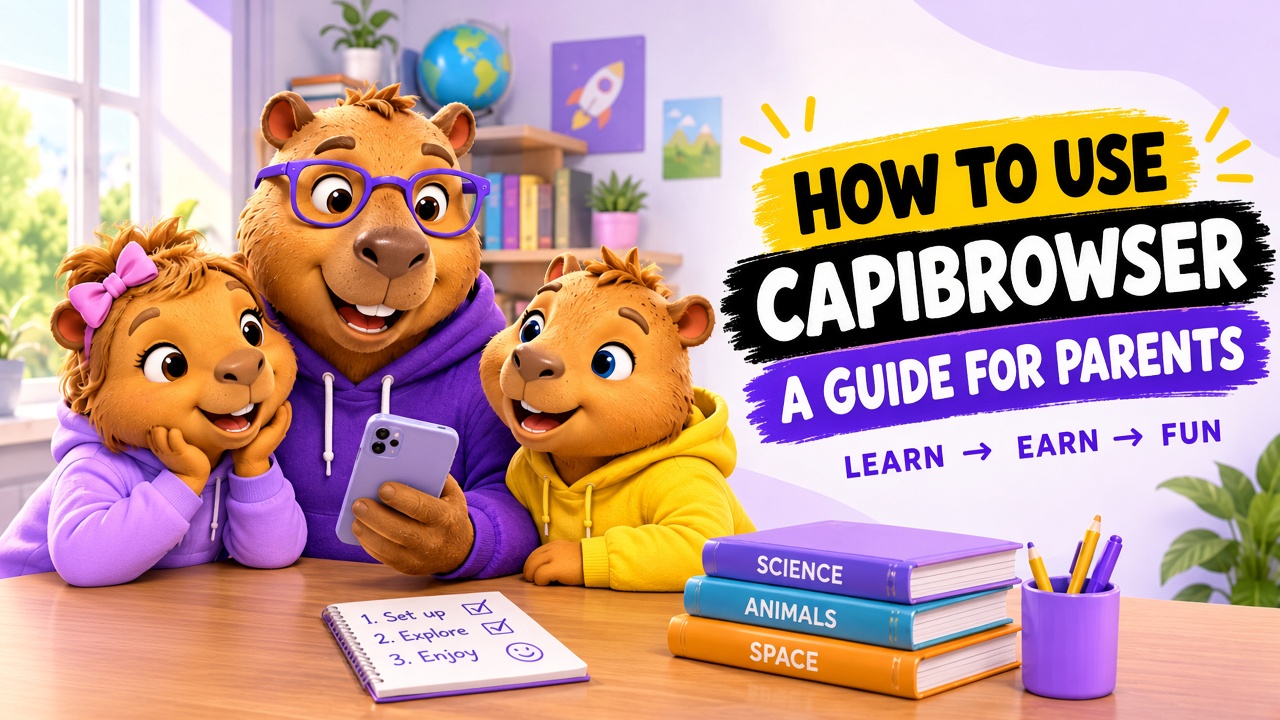
CapiBrowser is a safe browser for kids that helps parents control what their children can access on the Internet while encouraging them to make better choices with their screen time.
Instead of treating all screen time the same, CapiBrowser follows a simple idea:
Learn → Earn → Fun
Kids can browse parent-approved websites and YouTube channels, earn Gems by spending time on useful content, and use those Gems to unlock extra time in apps their parents have approved.
This guide walks you through the main features of CapiBrowser and shows how to get started.
1. Set Up CapiBrowser for Your Child
When you first open CapiBrowser, the setup process helps you create a safe and personalized browsing experience for your child.
You’ll start by creating a parent PIN to protect your settings. Then, you’ll select your child’s age group and interests so CapiBrowser can better tailor the experience to them.
You can also decide which apps should be blocked and which apps your child can unlock for extra time using Gems.
Once you’ve finished the setup, your child can start exploring approved content, earning Gems, and spending them on fun.
2. Explore the Home Screen
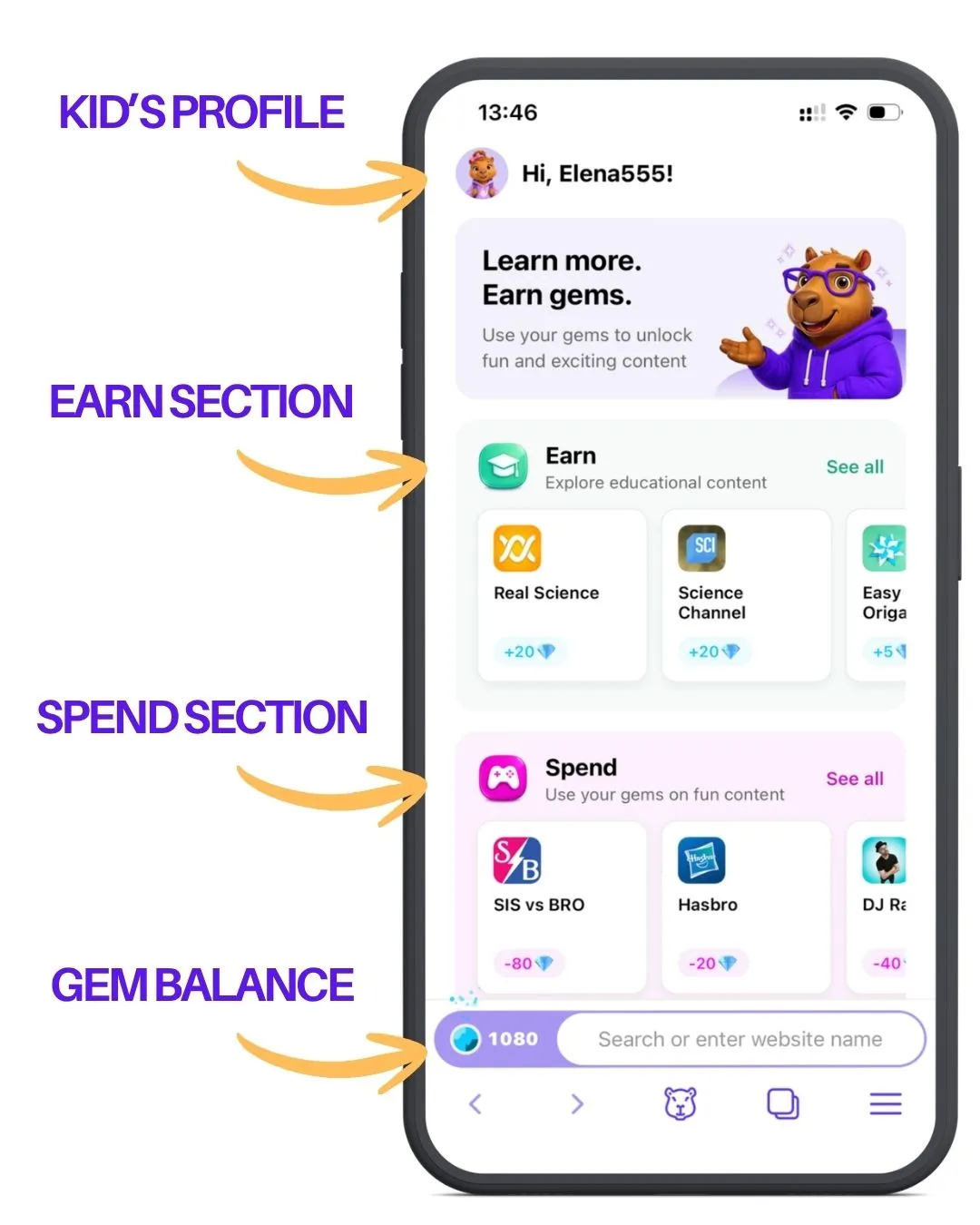
The CapiBrowser Home screen is where your child discovers content, earns Gems, and sees how they can spend them.
At the bottom, your child can see their current Gem balance and search for or enter a website. Below that, the Home screen is divided into two main sections:
The Earn Section contains useful content your child can explore to earn Gems.
This could include content about science, animals, space, technology, or other topics your child is interested in. Each piece of content shows how many Gems your child can earn.
For example, in the screenshot above:
- Real Science: +20 Gems
- Science Channel: +20 Gems
- Easy Paper Origami: +5 Gems
Your child can tap See all to discover more content.
The Spend Section shows fun content that your child can unlock using their Gems. For example, they might spend Gems on cartoons, games, or other entertainment that you’ve approved. Each item shows how many Gems it costs. The Fun items should cost more than the Spend items.
This creates a simple loop: Explore useful content → Earn Gems → Spend Gems on fun
At the bottom of the screen, your child can also navigate back and forward, return to the CapiBrowser home screen, access their tabs, and open the menu.
3. Add a Bookmark
Found an interesting website or YouTube channel for your child? You can save it as a bookmark so they can open it easily next time.
To add a bookmark:
- Go to the list of bookmarks.
- Click “Add” button
- Enter the link to the website or YouTube channel you want to allow
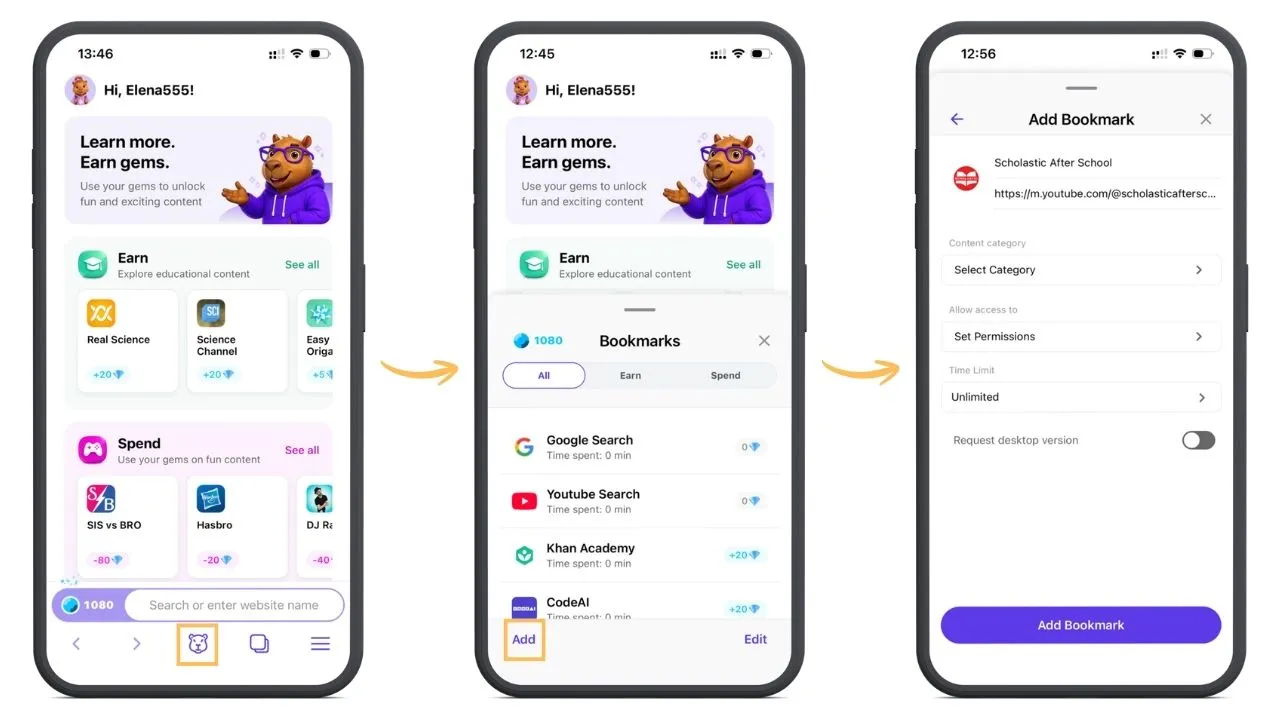
- Enter the Parental Pin
- Select a content category with the assigned price for minute (educational or fun)
- Choose what type of access you give: to the whole website (or YouTube channel) or only to this webpage
- Set a time limit if necessary
- Save the bookmark.
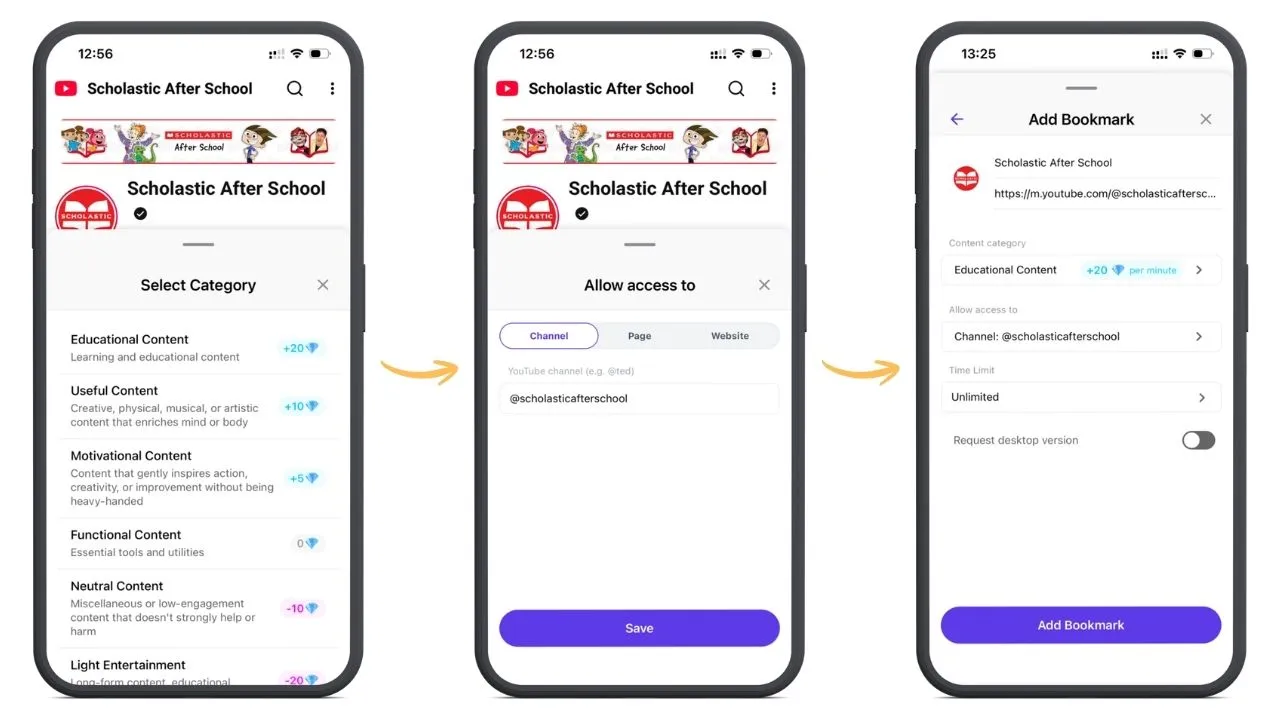 The website or YouTube channel will now appear in your bookmarks.
Bookmarks are especially useful for websites your child visits often, such as learning platforms, science websites, reading sites, or other parent-approved resources.
4. Let Kids Earn Gems for Useful Content
One of the main ideas behind CapiBrowser is that useful screen time can lead to fun screen time.
Kids can earn Gems by spending time on content that you have marked as useful. For example, you might approve YouTube channels about:
- Science
- Animals
- Space
- History
- Technology
- Other subjects your child is interested in
This doesn’t mean every child has to watch school-like content. The goal is to help kids discover useful content they actually enjoy.
For example, a child who loves animals might earn Gems by watching nature videos. Another child might prefer science experiments or engineering videos.
The result is a simple motivation loop:
Watch useful content → Earn Gems → Use Gems for fun
5. Choose Which Apps Kids Can Unlock
CapiBrowser can also work with apps outside the browser. Parents can choose which apps their child is allowed to unlock with Gems and which apps are blocked. For example, you might allow your child to unlock Roblox for extra screen time, while keeping other apps unavailable.
To configure apps:
- Open the Settings.
- Go to the App Controls section.
- Enter the Parental Pin
- Choose the apps that your child can unlock with Gems.
- Save your settings.
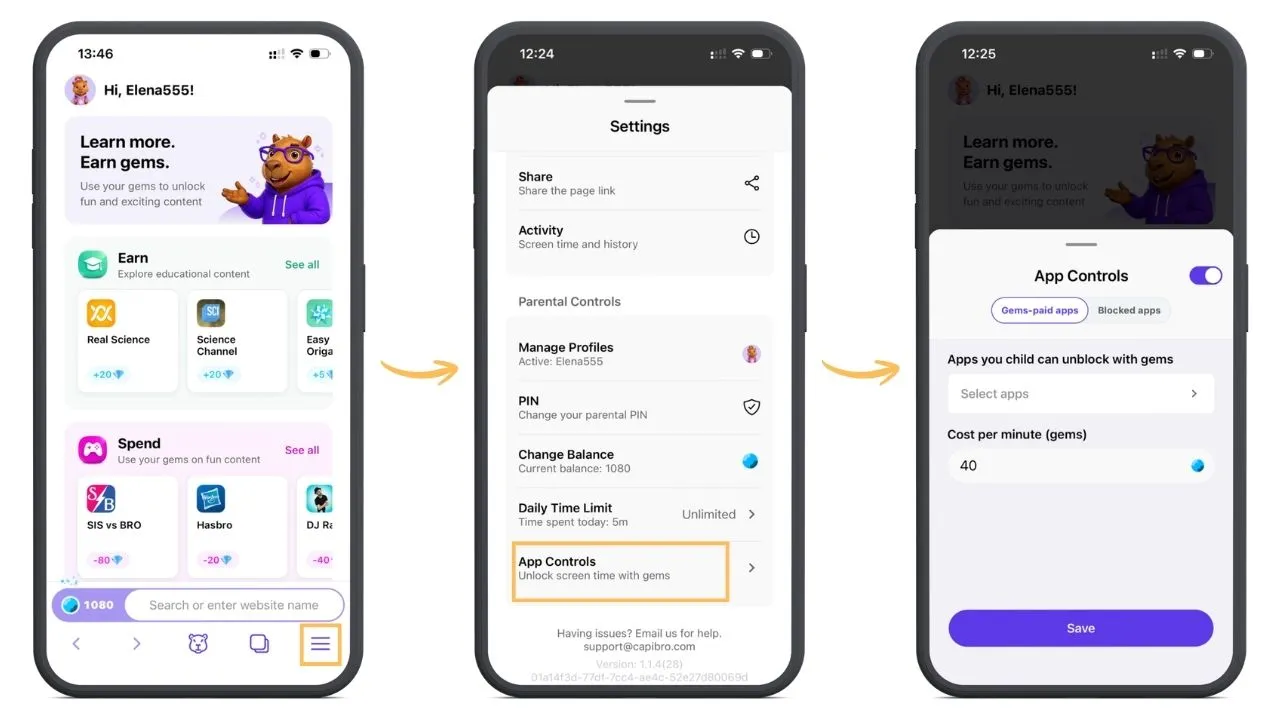
Only apps that you approve can be unlocked.
This is important because Gems don’t give kids unlimited access to the device. Parents decide which apps are part of the reward system.
Kids can save their Gems
Another useful part of the system is that Gems don’t have to be spent immediately. A child can earn Gems during the week and save them for later. For example, they might save Gems during school days and use them at the weekend to unlock extra time in a favorite game when friends are playing.
This makes extra screen time something kids can earn, save, and plan for rather than something they have to ask for every time.
6. Check Your Child’s Screen Time Analytics
CapiBrowser also gives parents a way to see how their child’s screen time is being used.
Analytics help you understand things like:
- How much time your child spends in CapiBrowser
- Which websites or channels they use
- How much time is spent on useful content
- How Gems are being earned and used
- How screen time changes over time
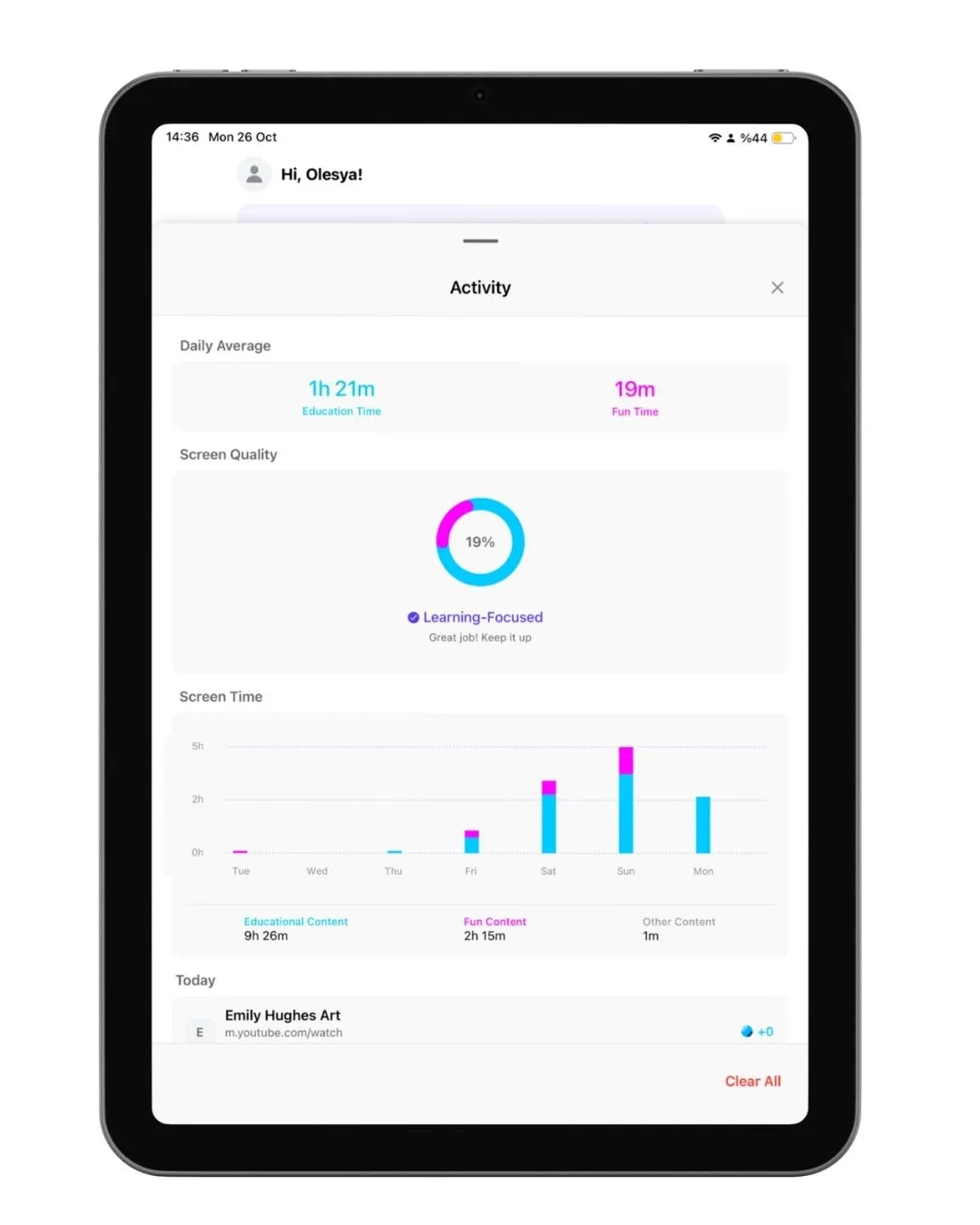
The goal isn’t to watch every move your child makes. Instead, analytics can help you answer a more useful question: “What is my child actually getting from their screen time?”
7. Start Simple and Adjust as You Go
You don’t have to configure everything at once.
A simple setup could look like this:
- Approve a few websites and YouTube channels Start with content your child already enjoys.
- Mark useful content Choose content that should earn Gems.
- Set your screen time limits Decide how much screen time your child can have each day.
- Choose a few apps that can be unlocked For example, allow a favorite game or entertainment app.
- Check analytics after a few days See what your child is actually watching and how they are using their time.
Then adjust the rules as you learn what works for your family.
Healthy screen time habits aren’t just about setting limits. They’re also about helping kids learn how to make balanced choices about what they watch, play, and do online.
CapiBrowser encourages children to explore useful content they’re genuinely interested in, earn Gems along the way, and spend them on fun content or extra time in parent-approved apps.
Over time, this approach can help children understand that screen time involves choices and trade-offs. Instead of relying only on parents to decide when the fun stops, kids get opportunities to practice managing their screen time themselves, within boundaries their parents set.
The goal is simple: less arguing about screen time, more useful content, and healthier digital habits that can grow with your child.
👉 Download CapiBrowser today.