 CapiBrowser
· 8 min read
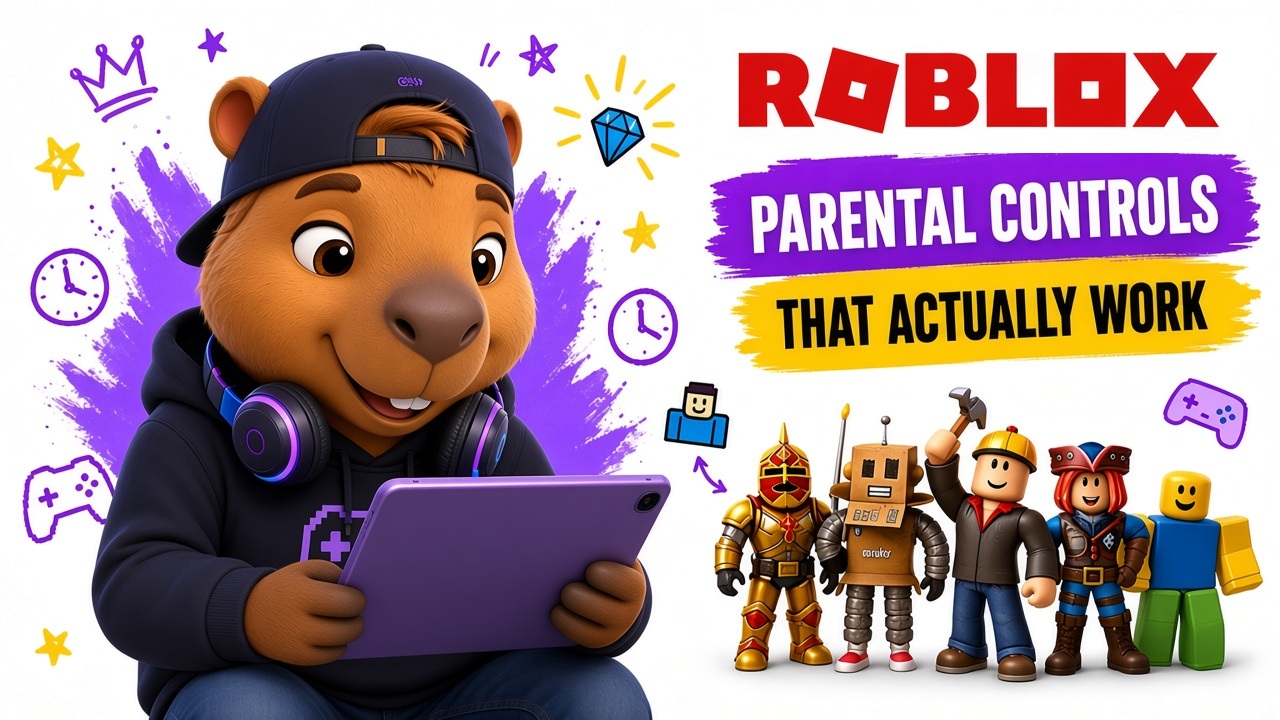
Roblox Parental Controls That Actually Work
Use Roblox parental controls for games, chat, spending, and screen time. Pair them with earn-before-play so kids unlock Roblox after useful activity.
“Just five more minutes. My friends are still on.”
If your child plays Roblox, you’ve probably heard some version of this. A daily time limit can stop the session, but it doesn’t stop the argument. The game is social, the friends are waiting, and a hard cutoff can feel unfair to a child who didn’t have any way to earn more time.
Roblox does give parents useful controls for content, chat, spending, and screen time. Those settings are worth turning on. What they don’t do is help a child earn playtime. Limits answer “how long.” They don’t answer “what should happen before Roblox starts.”
A setup that actually works uses both layers:
- Roblox’s own parental controls to decide what your child can play, who they can talk to, how much they can spend, and the maximum time they get in a day.
- An earn-before-play system so extra Roblox time is unlocked after useful activity, instead of after another negotiation.
What Roblox’s parental controls can do
Roblox lets you manage your child’s account in two ways. You can link your Roblox account to theirs and change settings from your own device, with emails about their activity. Or you can use Parent mode on their device if you don’t have a linked parent account. A linked parent account is the better option if you want spending notifications and the ability to respond to requests without borrowing their phone.
To open the settings with a linked parent account:
- Go to Settings (the gear icon on desktop, or More and then Settings on mobile).
- Select Parental controls.
- Select your child’s account.
You’ll see pending requests, their Robux balance, screen time, top games, and friends, plus the settings you manage. The settings available to you depend on your child’s age. From age 13, your child manages their own screen time limits and blocking, and monthly spending limits no longer apply. For younger children, you still have a lot of control.
Content: which games they can join
Under Content restrictions, you can:
- Set a content maturity level: Minimal, Mild, Moderate, or Restricted. This controls which games they can join based on each game’s rating.
- Block a specific game, even if its rating would otherwise allow it.
- Allow a specific game your child has asked to play, including games that aren’t available by default on Roblox Kids or Roblox Select accounts.
- Decide whether they can play games about sensitive issues, or join preview games that friends invite them to test before those games are fully published.
If you block a game while your child is already playing it, the block takes effect the next time they enter that game.
Chat, friends, and visibility
Under Communication, you can turn experience chat and direct chat on or off, choose whether your child can join parties with friends, and decide who they can chat with (all friends, trusted friends, or no one). Many of these options need an age check first, and children under 9 or 13 may need your consent depending on the setting.
You can also review their friends, approve trusted-friend requests, block or report users, and choose who can see that your child is online or what they are playing.
These settings matter as much as the timer. A short session in a game with open chat is a different risk than a longer session in a game you’ve already reviewed.
Spending and Robux
Under Spending restrictions, you can set a monthly spending limit (the default is no limit) and choose how often you get spending notifications. The limit is in your local currency, resets at the end of the calendar month, and does not apply to gift-card redemptions. Spending notifications need a linked parent account.
You can also see your child’s Robux balance, add Robux yourself, and manage Robux transfers to trusted friends, including daily and monthly transfer limits and whether you approve each transfer.
If in-game purchases are part of the tension in your house, set the monthly limit to an amount you’re comfortable with — including zero — before you worry about playtime.
Daily screen time
Roblox can cap how long your child spends on the platform each day:
- Open your child’s page in Parental controls.
- Find Screen time and select Manage.
- Choose a daily limit in 15-minute increments, or leave it on No limit.
Once they hit the limit, they see a message and can’t use Roblox for the rest of the day. You can also see a seven-day screen-time chart and their top games from the last week, and turn on a weekly activity email.
This is a solid backstop. It is not, by itself, a routine your child can follow. When the limit hits in the middle of a game with friends, the only move left is to ask you to break the rule.
Why a time limit isn’t enough
A daily cap is useful because it creates a ceiling. The problem is everything that happens before that ceiling.
Kids don’t usually ask for “more Roblox” because they forgot the rule. They ask because the rule has no path to more time. There is no way to trade reading, homework, or a science video for 15 extra minutes. The only lever they have is you.
That’s why the same conversation repeats after school, before dinner, and again when friends come online at the weekend. The limit is doing its job. The system around it isn’t.
There’s another gap: from age 13, your child manages their own Roblox screen-time settings. If you still want a clear “learn first, then play” habit as they get older, you’ll need something outside Roblox to support it.
Add earn-before-play
Earned screen time means extra playtime is a reward for activities you choose, not something a child has to negotiate for. Some families connect it to reading, chores, or homework. Another option is to let useful screen time earn entertainment screen time:
Learn → Earn → Have Fun
This is the idea behind Gems in CapiBrowser. Parents choose which apps their children are allowed to unlock. For example, you can allow Roblox and still decide how that unlock works. Kids earn Gems by spending time on useful content you’ve approved — a science channel, a nature video, a coding lesson, or another topic they actually enjoy. They then spend those Gems to unlock extra time in the apps you selected.
Gems don’t open apps you haven’t approved. You stay in control of which games are part of the reward, while your child gets some control over when they’ve earned their Roblox time.
They can also save Gems instead of spending them right away. A child might earn during the school week and save them for the weekend, when friends are online. Extra Roblox time becomes something they can plan for: save now, spend later.
There isn’t one perfect ratio for every family. A simple starting point is 3 units of useful activity for 1 unit of entertainment. You can adjust that based on age, homework load, and how intense Roblox is in your house.
How to set this up
Use Roblox for safety and the daily ceiling. Use CapiBrowser for the earn-before-play loop that happens first.
1. Turn on Roblox’s parental controls. Link a parent account if you can. Set content maturity, block any games you don’t want, review chat and friend settings, and add a monthly spending limit. Then set a daily screen-time cap you’re comfortable with — not as the whole plan, but as the maximum.
2. Decide what should happen before Roblox. Be specific. “After homework” is a good rule. “After 20 minutes of useful content” is even clearer, because your child can see the progress.
3. Allow Roblox as an unlockable app in CapiBrowser. In CapiBrowser:
- Open Settings.
- Go to App Controls.
- Enter your parent PIN.
- Choose Roblox as an app your child can unlock with Gems.
- Save your settings.
Only apps you approve can be unlocked. You might allow Roblox and keep other games blocked.
4. Approve a few useful websites or YouTube channels. Pick content your child already likes, then mark it as useful so it earns Gems. A child who loves animals might earn by watching nature videos. Another might prefer science experiments or building tutorials.
If you want the exact clicks, follow the step-by-step guide to using CapiBrowser.
5. Let your child earn, then unlock Roblox. The loop should feel predictable:
Explore useful content → Earn Gems → Spend Gems to unlock Roblox
When the Gems run out, Roblox waits until they’ve earned more — or until tomorrow, if they’ve also hit Roblox’s daily cap. You’re no longer the person who has to invent a reason to say no in the moment.
A simple after-school routine
A routine works better than a new rule announced in the middle of a game. It might look like this:
- Homework or another offline responsibility first.
- A short stretch of useful content in CapiBrowser, enough to earn the Gems you’ve agreed on.
- Unlock Roblox with those Gems.
- Stop when the Gems are gone, or when Roblox’s daily limit is reached — whichever comes first.
The Roblox cap is still there if a session runs long or if Gems were saved up. The earn-before-play step is what reduces the “just five more minutes” conversation, because your child can see how to get more time next time.
If friends usually play on Saturday, say so out loud: earn during the week, save the Gems, spend them when it counts. That makes the system feel fair instead of like a punishment.
Learn first. Earn Gems. Then play.
👉 Download CapiBrowser and let kids earn Roblox time instead of negotiating for it.